Link your Bluesky Account to a Domain
This guide walks you through creating a domain and linking it to your Bluesky account so it becomes your Bluesky handle.
Step 1: Access the Domain Management Center
Open the Domain Management Center.
Log in with your credentials. If you don't have them yet, request access here.
Step 2: Create your domain
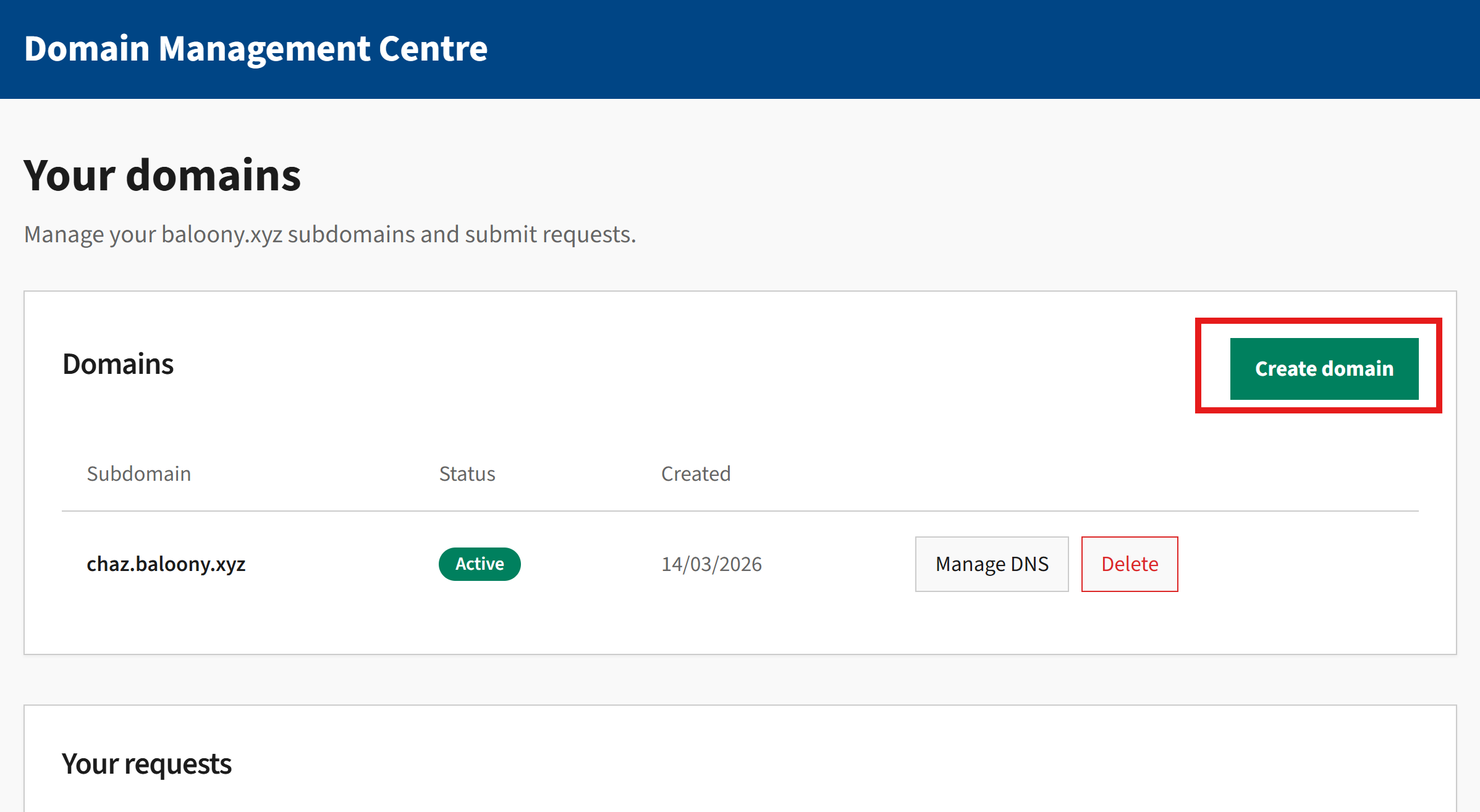
Click Create Domain.
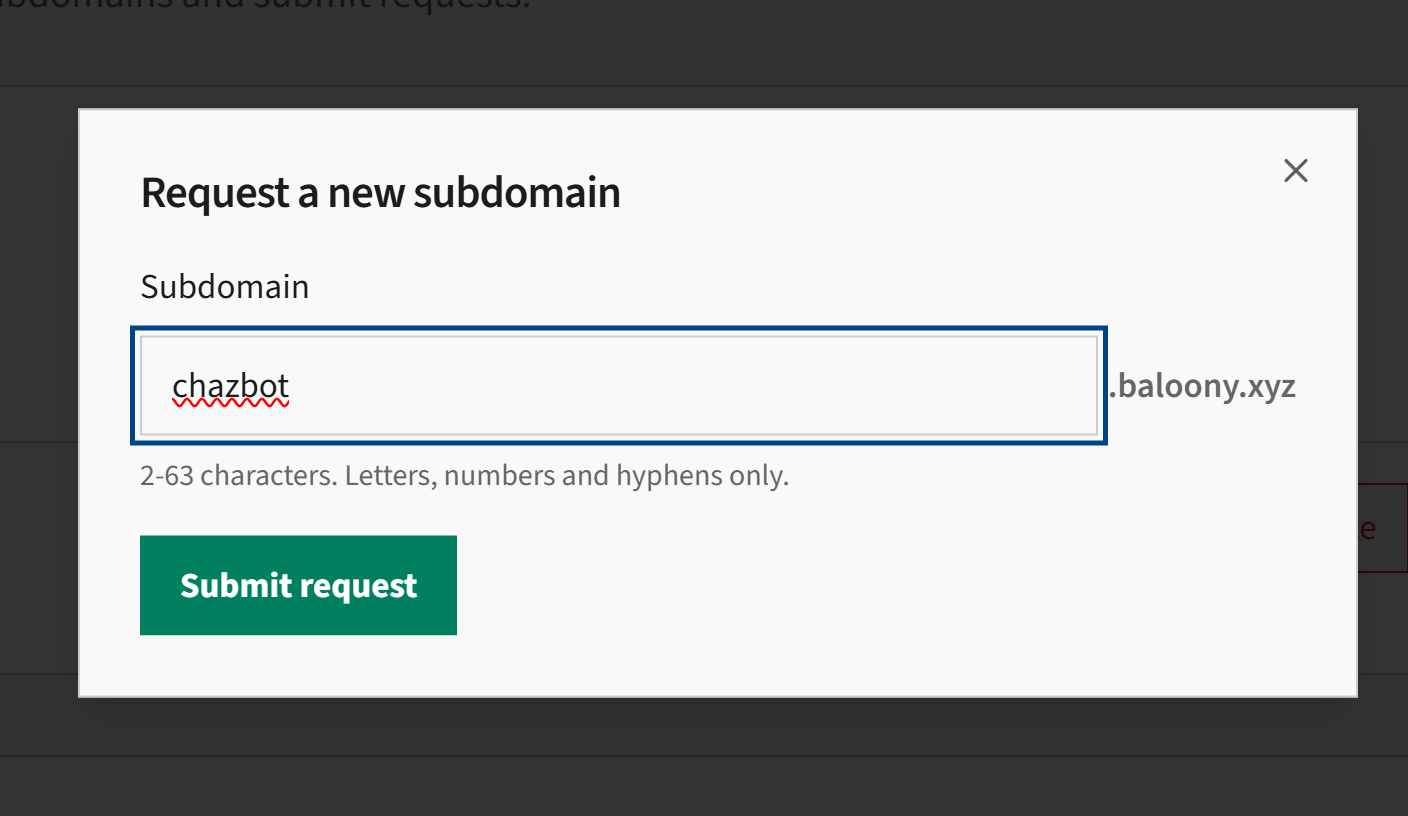
Enter the handle you would like and submit the request. Then wait for it to register.
Step 3: Link the domain to Bluesky
Once the domain shows Active, click Manage DNS.
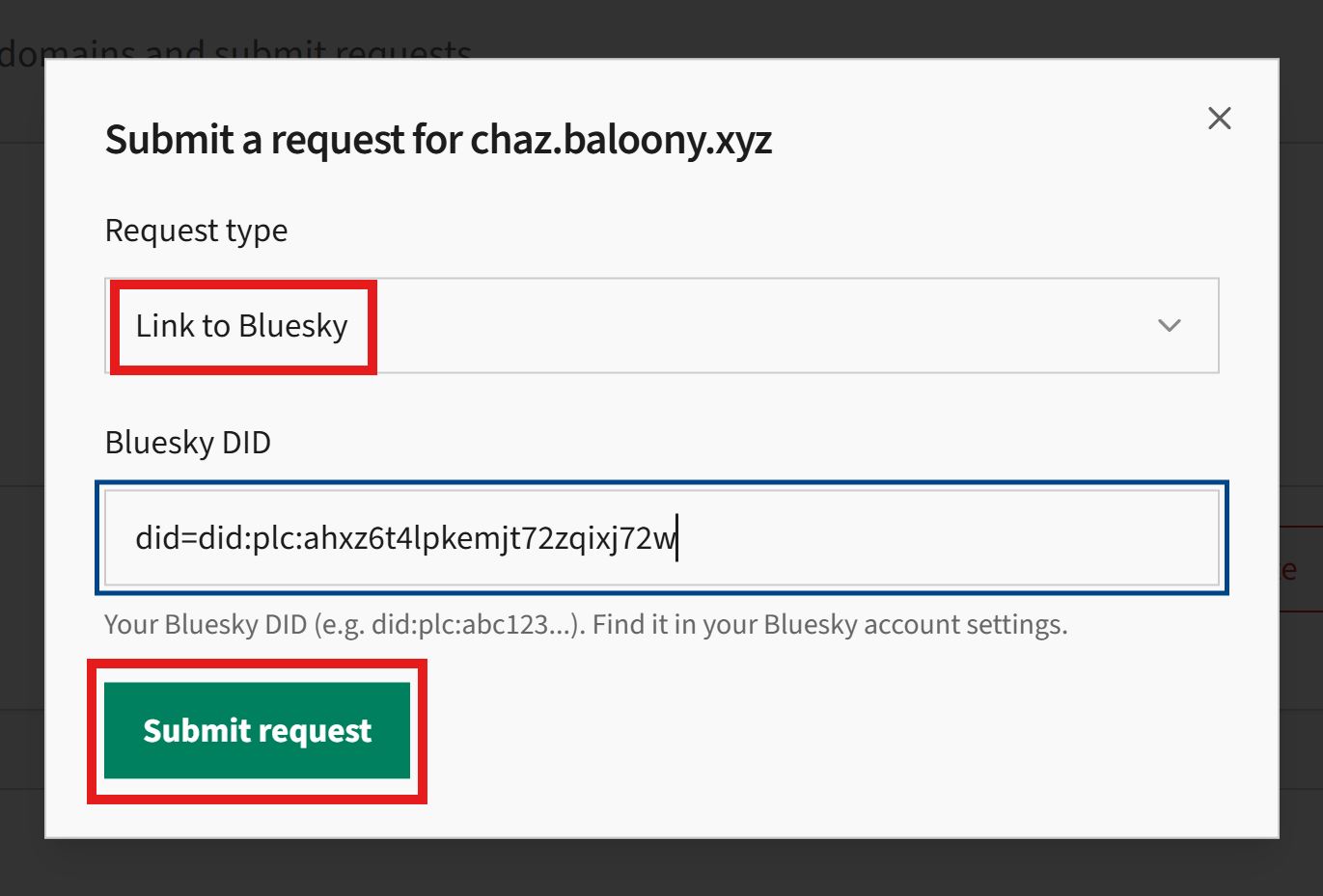
Select the request type Link to Bluesky.
Step 4: Enter your Bluesky DID
Enter your Bluesky DID value.
If you don't know how to find it, .
Press submit. Processing may take a few minutes. Once complete you will receive a confirmation email.
Step 5: Set your custom Bluesky handle
- Open Bluesky.
- Go to Settings.
- Select Account.
- Open Handle.
- Enter your domain handle (example:
yourname.baloony.xyz). - Confirm the change.
Bluesky will automatically verify the domain using the DNS configuration you created earlier.
About this service
Learn how to link your Bluesky account to a custom domain using the Baloony Domain Management Center.